Home » Support » Index of All Documentation » How-Tos » How-Tos for Web Development »
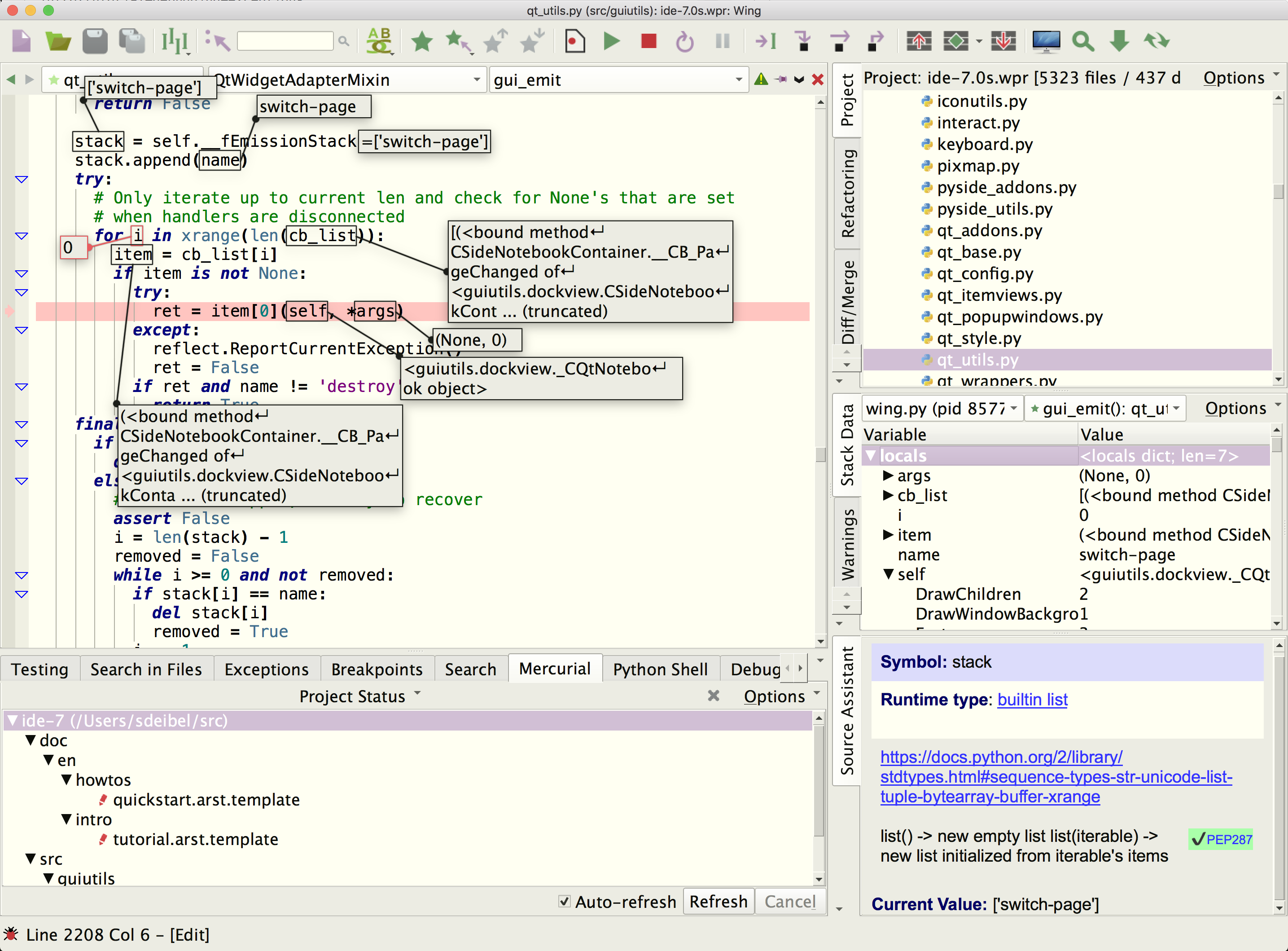
Wing IDE is an integrated development environment that can be used to write, test, and debug Python code that is written for Plone, a powerful web content management system. Wing provides auto-completion, call tips, debugger, and many other features that help you write, navigate, and understand Python code.
For more information on Wing IDE see the product overview. If you do not already have Wing IDE installed, download a free trial now.
To get started using Wing, refer to the tutorial in the Help menu in Wing and/or the Wing IDE Quickstart Guide.
Introduction
The instructions below are for the Plone 4 unified installer. If you are using an older version of Plone or use a source installation of Plone 4 that makes use of old style Products name space merging, please refer instead to the instructions for Using Wing IDE with Zope.
Configuring your Project
To set up your project, simply set the Main Debug File in Project Properties to the file zinstance/bin/instance within your Plone installation. Wing will read the sys.path updates from that file so that it can find your Plone modules.
For Plone 4, do not use the Zope2 support in Project Properties under the Extensions tab. This no longer works and is not needed unless your Plone installation still uses old style Product name space merging.
Debugging with WingDBG
There are two ways to configure debugging. The method described in this sub-section uses a Zope control panel to turn debugging on and off and will debug only requests to a particular debug port. This is the most common way in which Plone is debugged with Wing IDE.
To get debugging working install WingDBG, the Wing debugger product, from zope/WingDBG-4.1.3.tar in your Wing installation by unpacking it into zinstance/products. Then edit your etc/zope.conf to change enable-product-installation off at the end to instead read enable-product-installation on. Finally, click on the bug icon in the lower left of the IDE window and turn on Enable Passive Listen so the debugger listens for connections initiated from the outside.
Then start Plone and go into the Zope Management Interface from http://localhost:8080/ , click on Control Panel, and then on Wing Debug Service at the bottom. From here you can turn on debugging. The bug icon in lower left of Wing IDE's window should turn green after a while and then any page loads via port 50080 (http://localhost:50080/) will be debugged and will reach breakpoints. This port and other debugger options are configurable from the WingDBG control panel.
WingDBG in buildout-based Plone installations
In some new buildout-based Plone settings, WingDBG will not load until the buildout.cfg (generated by the template plone4_buildout) is edited to add the following just above [zopepy]:
products = ${buildout:directory}/products
Then rerun bin/buildout -N which will add a line like the following to your parts/instance/etc/zope.conf file:
products /path/to/your/products''
You will also need to add the specified products directory manually, and then place WingDBG in it.
WingDBG as an Egg
Encolpe Degoute has been maintaining a version of WingDBG that is packaged as an egg.
Creating an egg yourself is also possible as follows:
paster create -t plone Products.WingDBG
Then copy WingDBG/* to Products.WingDBG/Products/WingDBG.
Debugging Plone from the IDE
It is also possible to debug Plone without WingDBG by launching Plone directly from the IDE. This technique may be more convenient in some cases, and debugs all requests to the Plone instance (not just those on a special debug port). However, it takes more effort to set up and requires modifying the Plone sources.
To debug this way, set zinstance/bin/instance in your Plone installation as the Main Debug File in Project Properties (this should already be done from configuring your project earlier). Then right click on the file in the editor or Project view, select Properties, and set Run Arguments under the Debug tab to fg.
Then open the file zope2instance/ctl.py and change the AdjustedZopeCmd.doforeground method by adding the following code before the last if/else block:
import os
if os.environ.has_key('WINGDB_ACTIVE'):
p = os.path.dirname(command[1])
sys.path.append(p)
import run
sys.argv = command[1:]
run.run()
return
This prevents Plone from running a sub-process, which breaks debugging because only the original parent process is debugged.
Note that this solution can take more time to launch than debugging with WingDBG since the entire startup process is debugged.
Performance Hints
Plone and Zope together contain a very large Python code base. If you Add Directory from the Project menu to include the entire Plone installation, you will see significant CPU intensive processing, which can be an issue on slower machines and may take several minutes to complete. Wing should remain responsive during this time but may be sluggish in some cases. The status of the project scan is shown at the top of the Project tool and status of analysis is in the lower left of the IDE window.
Processing should cease after a period of time and the rest of your Wing IDE session should run at near zero CPU usage.
Related Documents
Wing IDE provides many other options and tools. For more information:
- Using Wing IDE with Zope, which describes how to set up Zope for use with Wing IDE.
- Wing IDE Reference Manual, which describes Wing IDE in detail.
- Plone home page, which provides links to documentation.
- Wing IDE Quickstart Guide which contains additional basic information about getting started with Wing IDE.
- Plone Bootcamps offer comprehensive training on Plone using Wing IDE throughout the course. Students learn how to set up and use Wing IDE with Plone.
| « 4.1. Using Wing IDE with the Google App Engine | Table of Contents | 4.3. Using Wing IDE with Zope » |