 Wingware
Tutorial: Setting Python Path
Python uses a search path referred to as the Python Path to find modules that are imported into code with the import statement. Most code only imports modules that are already on the default path, for example modules in the Python standard library, or modules installed into Python by pip, poetry, uv, pipenv, conda, or some other package manager.
However, in some cases code will depend on a different path provided either by setting the environment variable PYTHONPATH before starting Python, or by modifying sys.path at runtime before importing modules.
If the Python Path is changed by one of these methods, you may also need to tell Wing about this change. This is done with Python Path in Project Properties, accessed from the Project menu:
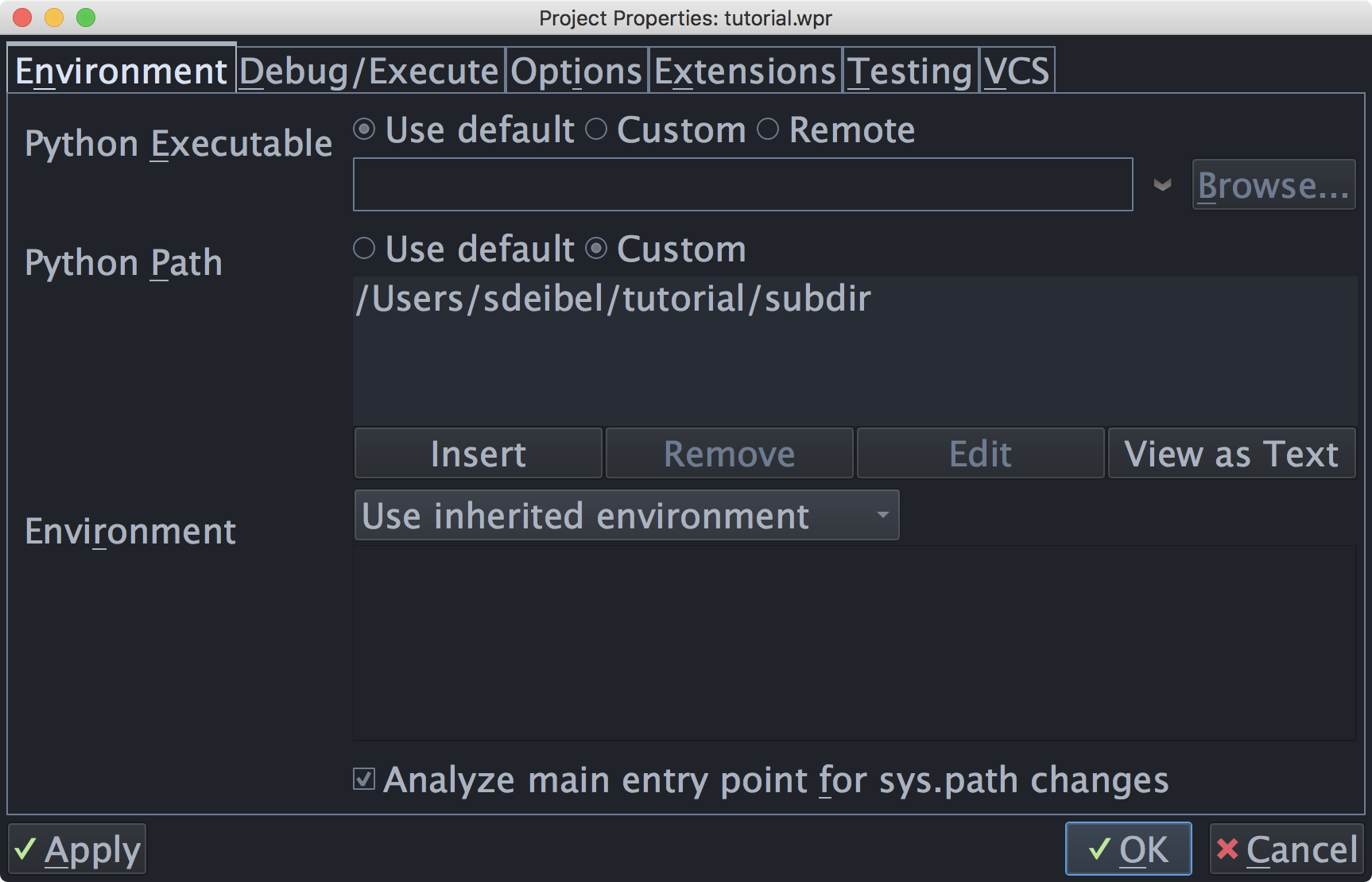
For this tutorial, you need to add the subdir sub-directory of your tutorials directory to Python Path, as shown above. This directory contains a module used as part of the first coding example.
Note that the full path to the directory subdir is used. This is strongly recommended because it avoids potential problems finding source code during debugging, if the starting directory is ambiguous or changes over time. If relative paths are needed to make a project work on different machines, use an environment variable like ${WING:PROJECT_DIR}/subdir. This is described in more detail in Environment Variable Expansion.
The configuration used here is for illustrative purposes only. You could run the example code without altering the Python Path by moving the path_example.py file to the same location as the example scripts.
Startup Environment
Wing uses its startup environment as the default environment for your Python code. As a result, if PYTHONPATH is set when you start Wing, it will also be used with your code. If this inherited path matches the needs of your code, then you don't need to set Python Path in Wing. However, if you have different Python environments on your system or code with different path expectations, then you should set Python Path in the project so that switching projects will also switch to the correct environment.
Virtualenv and Anaconda Environments
If you are using virtualenv, Anaconda environments, Poetry, uv, or pipenv to set up your Python environment, you don't need to set Python Path. Instead, set Python Executable to Activated Env and enter the command that activates your environment. This causes Wing to pick up the correct path and other environment needed to run code in the environment. In this case, Python is launched by running python in that environment.
You can also create a new virtualenv or Anaconda environment at the same time as creating a Wing project by selecting the Create New Virtualenv or Create New Anaconda Environment project types in the New Project dialog, accessed from the Project menu.
But don't do this now; you'll need the current project as you work through this tutorial.
Python Path Analysis
If your main entry point alters sys.path, and the file is set as the Main Entry Point in Project Properties then Wing may be able to automatically determine the correct path to use.
When in doubt, compare the value of sys.path at runtime in your code with the value reported by Show Python Environment in the Source menu. If they match then there is no need to set Python Path in your project.