 Wingware
Tutorial: Execute Mode and Session Reuse

By now you should have a pretty good idea of how to use Claude Code with Wing. Now let's look at execution modes and session reuse options available when running tasks from the Tasks tool.
Most per-task settings live behind the Q button on a task in the Tasks tool. On the Plan page of the Tasks tool, add this task now:
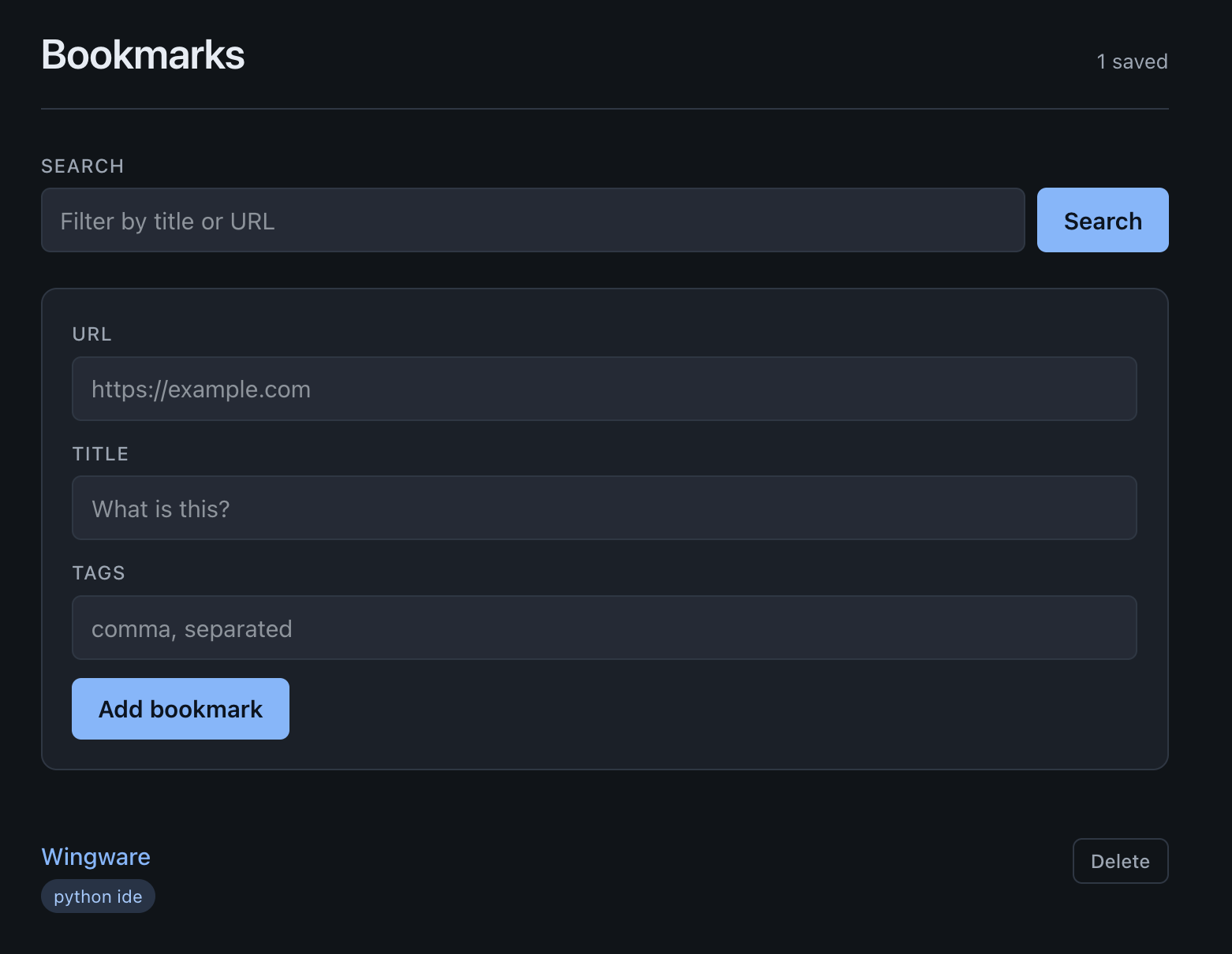
Let's add CSS so that this app looks like a real website. Use a clean dark mode design.
Then click the Q on the task line to see the queue picker and the run-modes available for each session reuse option. These allow you to control how the task is run once it is assigned to and started in a queue.
If you plan to send a Task to a queue that is running with auto-advance enabled, you will need to choose the run mode before sending it to a queue, because the task may start immediately. Otherwise, you can also select the mode while it's already in the queue on the Execute tab of the Tasks tool.
The available run modes are:
Plan Mode creates a new Claude Code session and carefully plans out a task before making any changes. You will be able to review the plan and ask for changes, and work won't start until you approve the plan.
Auto Mode creates a new session and relies on automatic classification of actions to run most actions that Claude Code takes without requesting approval. It will still request approval for actions that may produce unwanted results.
Accept Edits creates a new session and pre-approves all edits made to files, but requests permission before running commands or taking other actions.
Edits Require Approval creates a new session and prevents Claude from doing anything, even editing code, without approval for each command or edit that it wants to make.
Compact Context reuses the current session in the queue and its pre-existing run mode, but first compacts the context to save on tokens going forward. Compacting is a process that itself uses tokens, so it makes sense mostly if you plan to continue working in a large session for a long time.
Reuse Context reuses the current session in the queue and its pre-existing run mode, using the full unaltered context.
You don't necessarily have to run the CSS task if you don't want to; it was just added so you would have a Q menu to click on. However, the results are fun to see after completion and refreshing the page in your browser.
Try Plan Mode
The bookmarks app is now large enough that a structural refactor is worth checking before it runs. Draft a new task in the Tasks tool, click its Q button, and select Plan Mode under the run-mode options. Use this task description:
Refactor app.py so the bookmark routes live in a Flask Blueprint, and split the SQLite access out into a small db.py module with the connection-handling and query functions. Keep the existing tests passing. Don't change any external behavior.
The agent may ask you questions about how to proceed, then will produce a plan and stop. You can read the plan and ask for changes if needed. The agent won't make any changes until you accept the plan.
Try this now, to get a feel for it. This task shouldn't change the functionality of the app, just the design of the code behind it.
Plan mode is particularly useful if you want to start working on a task, while another task is already making changes to the same files. You don't have to worry about conflicting edits, since the plan mode task cannot make any edits.